
Installation and setup, step by step
One installer for every role. Start with one computer and add tills, kitchen screens and tablets whenever you need them – the data is transferred automatically.
Choose how each computer will work
You can change the role later in Settings → Network → “Change...”, without losing anything.
Standalone computer
One till
Everything on one computer: orders, kitchen, till, stock. Ideal for a small shop or for trying out the program.
Server + terminal
A few terminals, no separate server
The till computer is also the server. The other terminals and tablets connect to it while the program is open.
Server as a Windows service
Recommended for 3+ terminals
The server starts with Windows and runs continuously in the background, with no program open. The same computer can also be a terminal.
The installer
The setup wizard asks for the computer's role, backs up the data before every upgrade and adds the rules to the firewall.
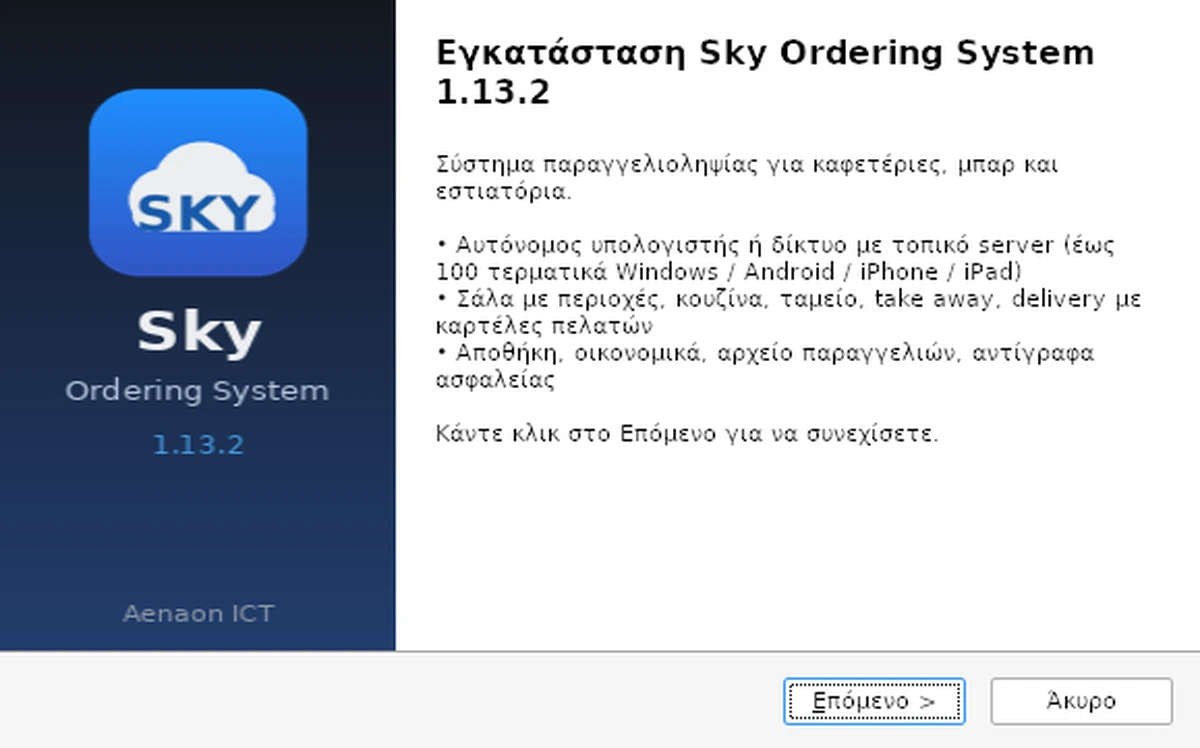
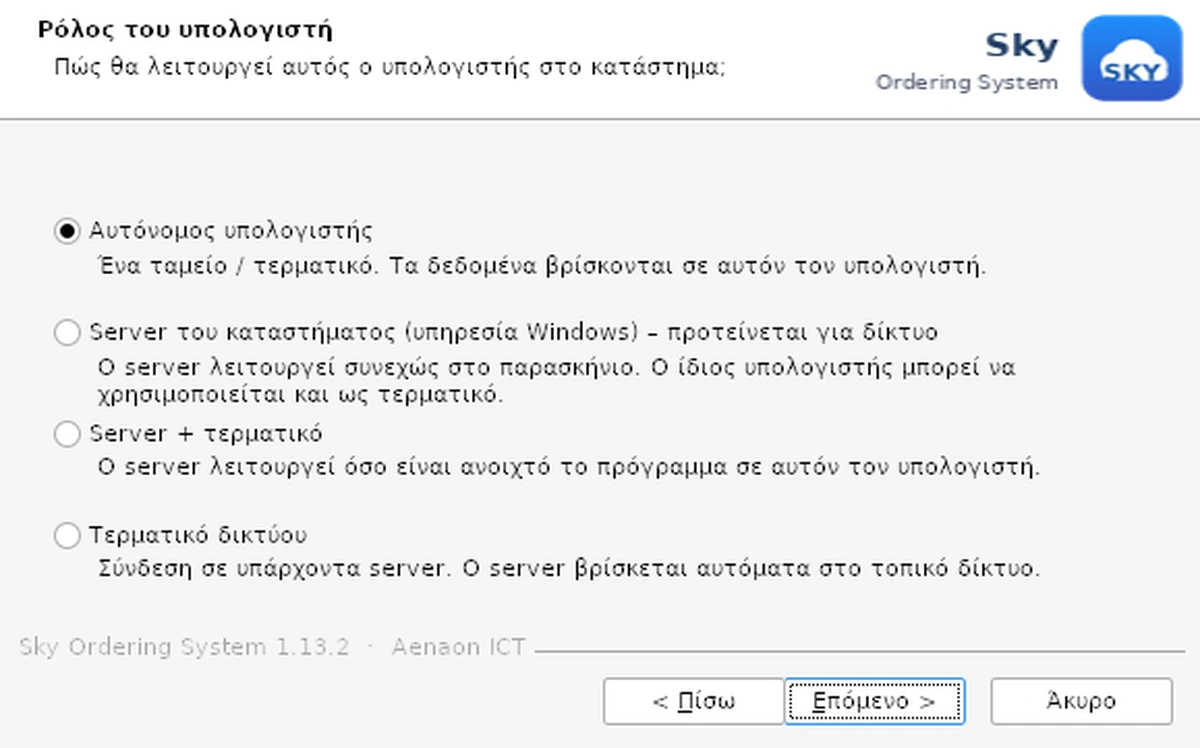
Open SkyOrderingSystem_Setup_1.13.2.exe
Choose the language of the installation and the program (12 languages), accept the licence and choose the computer's role. For the server, prefer “Network server as a Windows service”.
Upgrading from an older version
Just run the new installer: the data stays and a backup is kept before the upgrade. Upgrade the server and all Windows terminals to the same version.
Finish
The Start menu gets a “Sky Ordering System” group with the application, the server console, the Android APK and the User Guide.
First start
Ready for orders in two minutes
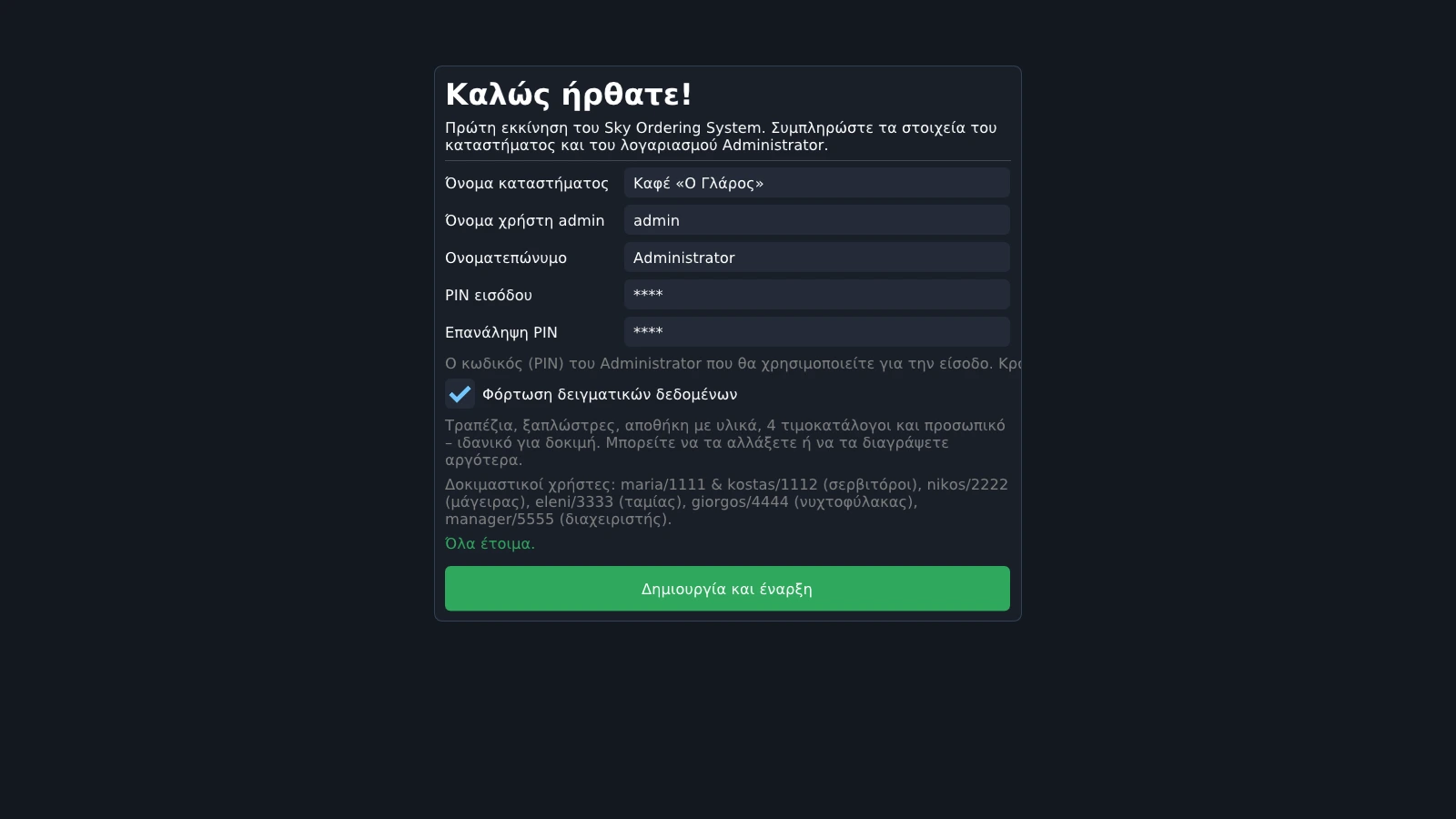
At the first start you choose the operating mode, and the wizard asks for a shop name and a password for the Administrator account.
The “sample data” creates tables, sunbeds, stock with ingredients, price lists and test users (waiters, cook, cashier, manager), so you can try it immediately. Change or deactivate them whenever you like.
- Places and areas: the “Places / Tables” tab or directly from the floor
- Items: from the ready-made catalogue or manually in the price lists
- Users: the “Users” tab, with role and PIN
Network: terminals and tablets
All terminals see changes immediately. Prices, passwords and finances are always calculated on the server.
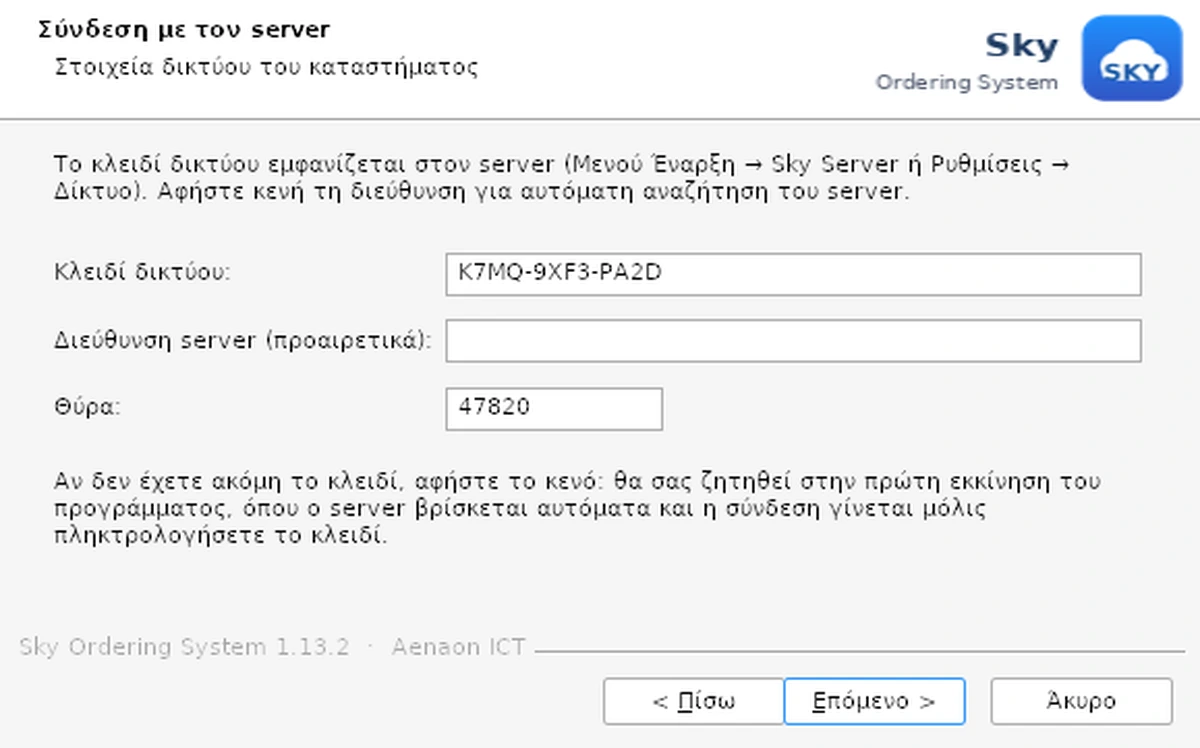
Network key
The server automatically creates a key (e.g. K7MQ-9XF3-PA2D). You can see it in the “Sky Server” console from the Start menu and in Settings → Network on every computer, and it is saved in the NetworkKey.txt file in the installation folder. All communication is encrypted with it.
Windows terminal
Choose “Network terminal” → “Find server automatically” (or type the server's IP) → network key → “Test connection” → “Continue”.
Android tablets and phones
Install the APK; the app finds the server by itself; type the network key. See details.
iPhone and iPad
In Safari, open the address shown by the server (e.g. http://192.168.1.10:47820/app/), type the network key and add the app to the Home Screen. No App Store needed. See details.
Ports
TCP 47820 for communication and UDP 47821 for automatic discovery. The installer opens them in the Windows firewall. Up to 100 simultaneous terminals (Windows, Android, iPhone and iPad).
Printers
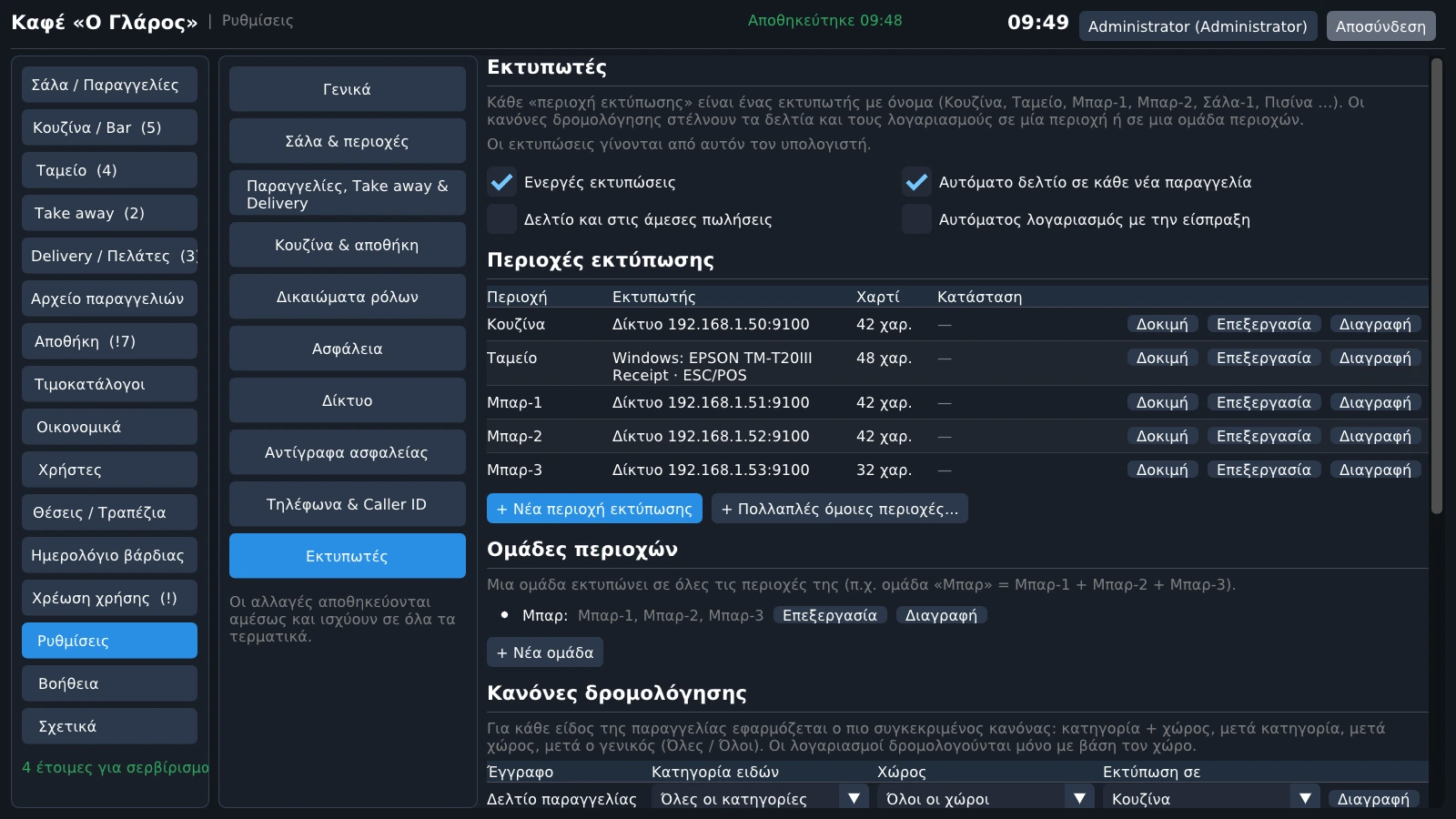
Settings → Printers. Printing is done from the computer that holds the data (standalone or server).
Print areas
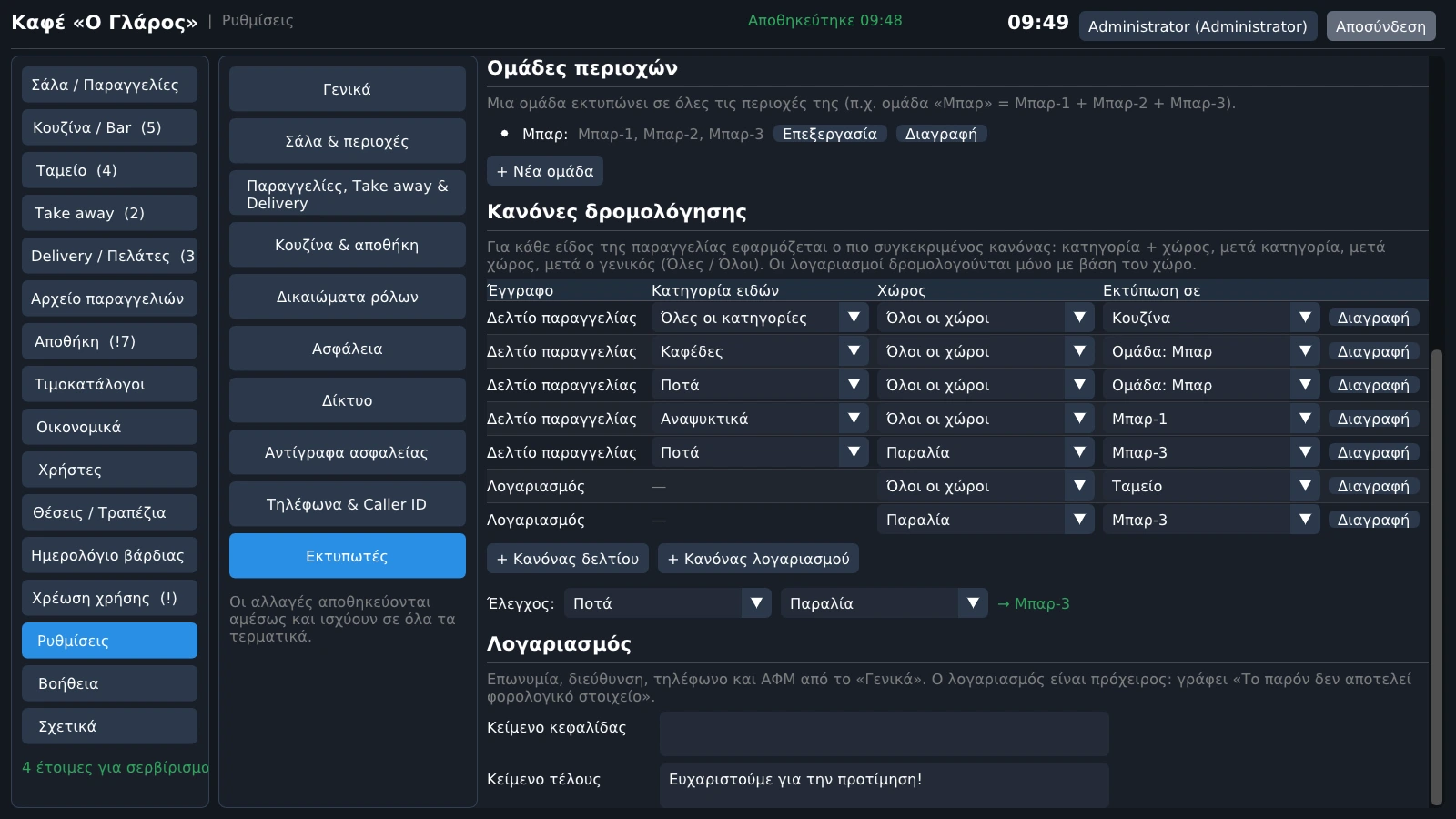
Kitchen, Till, Bar, Entrance, Floor, Square, Pool… A network thermal printer (IP, port 9100, ESC/POS) or a printer installed in Windows. With “+ Multiple identical areas” you create Bar-1, Bar-2, Bar-3 and the “Bar” group.
Rules
Item category + place → one area or one group. The most specific rule applies; the “Check” line shows where each item will be printed.
Test
The “Test” button prints all Greek letters and a width ruler (58 / 80 mm), so you can choose the right code page.
Caller ID for delivery
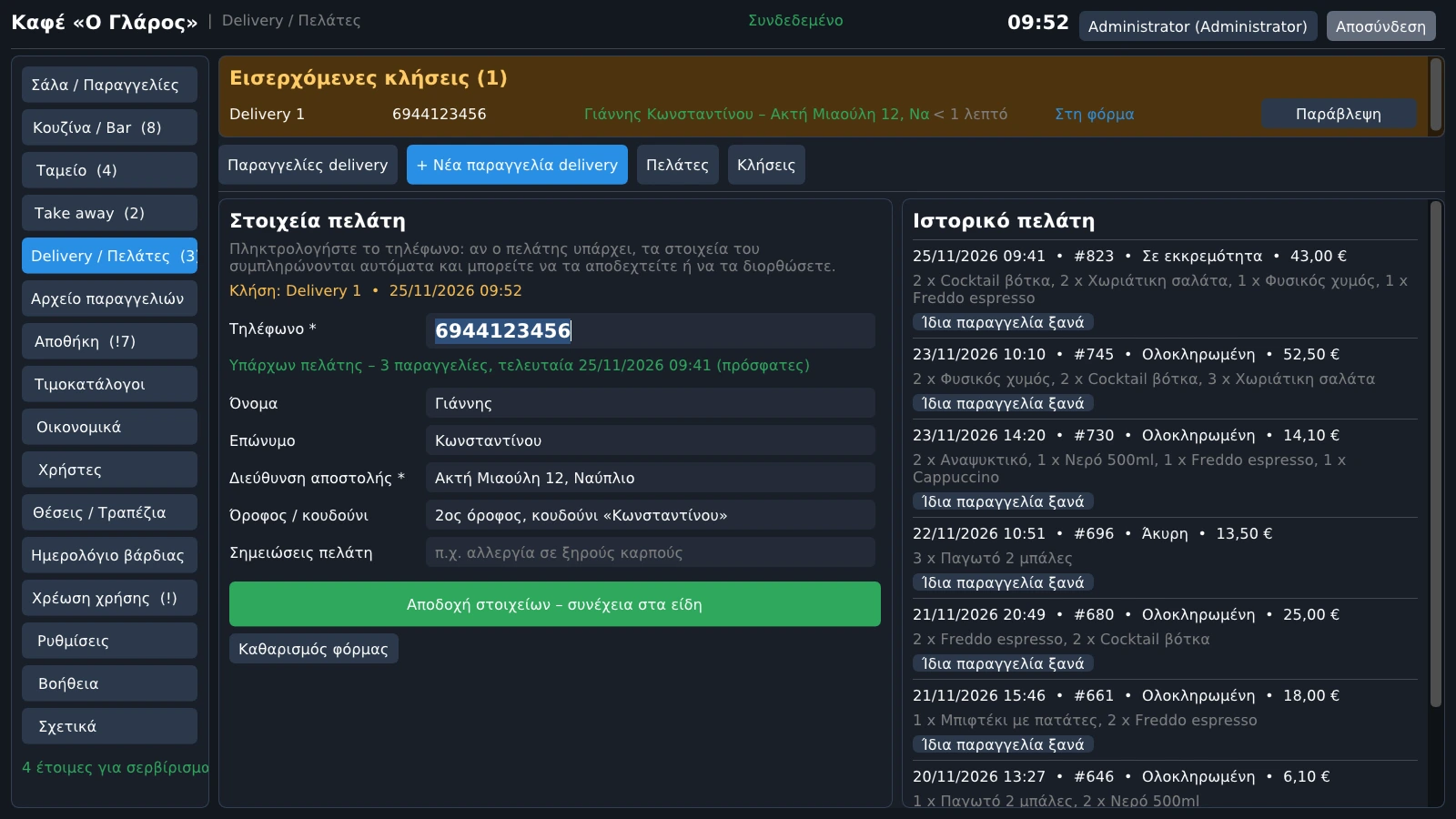
Settings → Phones & Caller ID. Up to 24 lines.
Connect a USB modem with caller identification to each phone line. On every call the number appears and, if the customer exists, the delivery tab opens automatically with their details and history.
- Set which terminals are “delivery terminals”
- With several terminals, calls are distributed in rotation to the next free one
- Call history with line, phone, customer and order
Monthly fee statement
The “Usage fee” tab (Administrator). Once, so that the statement is sent automatically at the end of each month.
Shop details
VAT number, address and phone, as they will be printed on the statement.
Email account
The account the statement will be sent from, and “Test connection”. For Gmail: smtp.gmail.com, port 465 (SSL/TLS) and an “app password” (Google Account → Security → 2-Step Verification → App passwords). The password is stored encrypted.
Automatic
On the last day of each month at 23:00 the statement is issued as a PDF and sent. If it fails, it retries every 15 minutes. See how pricing works.
Backups
Data is saved automatically and encrypted shortly after every change.
Backup folder
Settings → “Choose disk / folder...”: set a folder on another disk or USB. On closing, a backup (.skybak) is created automatically.
Restore
“Restore from backup...” (Administrator / Owner). Before restoring, a backup of the current state is kept automatically.
Forgot your password?
AENAON I.C.T. support has a recovery tool. Contact info@aenaonict.gr.
Updates
New versions and catalogue with one button
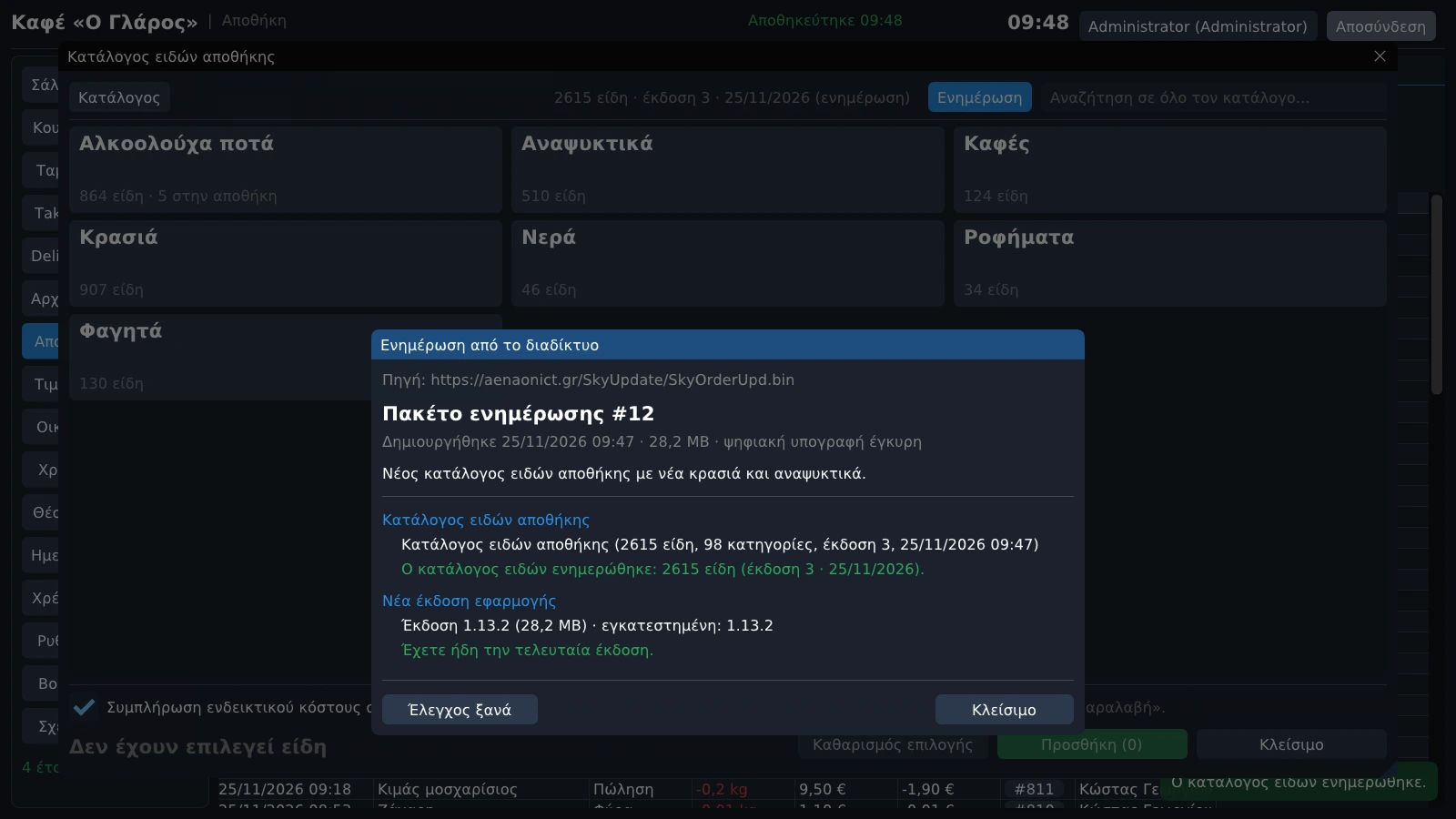
Settings → General → “Update...” (or the “Update” button in the item catalogue). The program downloads the signed update package from aenaonict.gr, checks the digital signature, updates the item catalogue immediately and, if a newer version exists, installs it with “Install version…”.
- Free for everyone
- Digitally signed: nothing is installed unless it comes from us
- Your data stays intact
Would you rather we took care of it?
Installation, network, Wi-Fi for the tablets, printers and Caller ID, with staff training. At your premises in Attica and Corfu, remotely elsewhere.
Athens (head office)
Kioutacheias 19, 162 31 VyronasCorfu
Dim. Odos Kato Agiou Markou, 490 83 PyrgiEmail: